Blog > Barcodes
Barcodes

Leigh Forbes
A (Very) Brief History of the Barcode
The barcode, it its simplest form, was first developed in 1949 by inventor Norman Woodland (along with Bernard Silver)¹. Although they originally conceived a linear design, based on Morse code, their eventual patent was for a circular "bulls-eye" code (which could be read from all angles). Sadly, with technology not yet advanced enough for the code to be read, the project stalled.
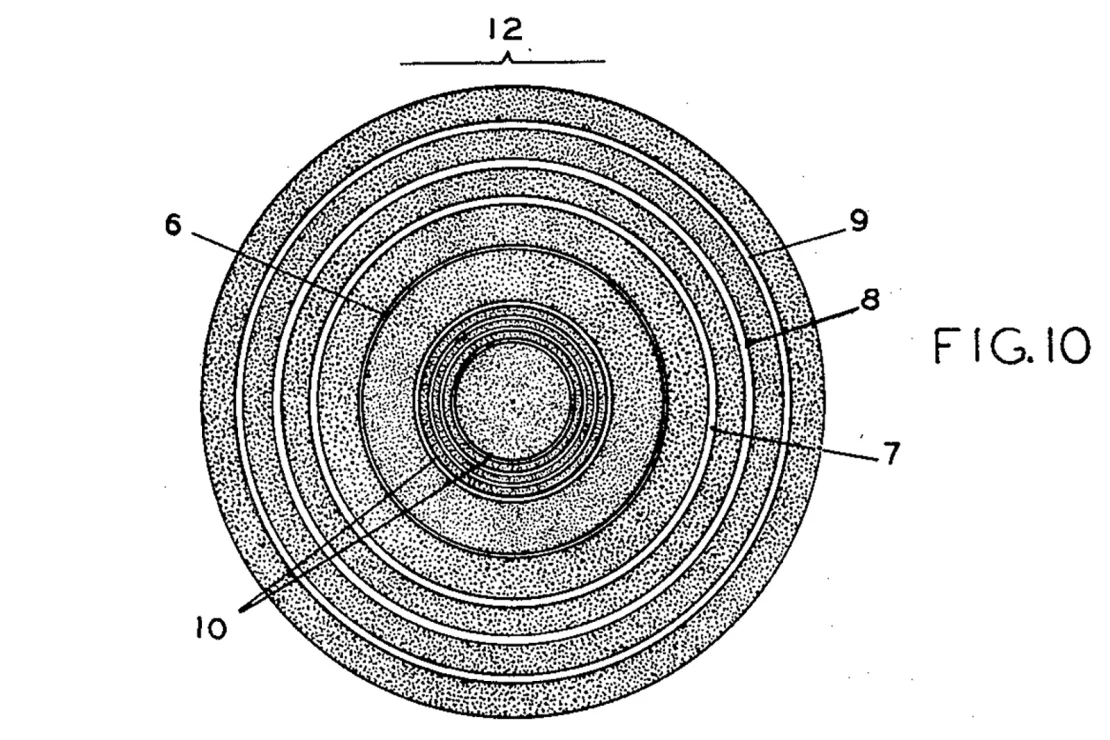
A diagram from Woodland and Silver’s original 1952 patent for their bullseye code.
Enter, eleven years later, the LASER – a technology with enough power to scan the codes. Although Woodland and Silver’s bulls-eye design finally made it into the shops in 1972, printing flaws generated errors in the system, meaning another solution was needed. So in 1973, the now-ubiquitous rectangular barcode – designed by George Laurer at IBM – was approved by the USA’s “Universal Product Identification Code Committee’s … [breathe] … Symbol Selection Committee”.
Since then, the barcode has come to be used on almost everything – from packets of pasta, to postal items, to blood samples; but of course where it interests the writer and publisher most, is on the back covers of paperback and hardback books.
How to Generate Your Own Barcode
If you are using a free ISBN supplied by your POD-platform, they will organise the barcode for you. But if you are publishing under your own imprint, you will need to generate your own barcode. The Nerd-Box content below is taken from my ISBN Explainer post, where you can find more info about how how to set up your own imprint, and the pitfalls to avoid when buying ISBNs.
Nerd Box – Make your own barcode (for free)
Visit barcode.tec-it.com  (link checked Jan 25) and follow these instructions:
- in the scrollable box on the left (might be headed ‘Linear Codes’), find the option for ‘EAN / UPC’ ,
- click on ‘EAN-13’ (the format for 13-digit ISBNs),
- in the ‘data’ window in the middle of the screen, enter your ISBN (no spaces or hyphens)
- in the barcode panel (on the right), click on the settings-cog at the top right and set the ‘image resolution (DPI)’ to 300 (this is print quality),
- set the file-type to ‘PNG’,
- click download, and you have an image file you can open, copy, and past onto your cover.
Any problems, let me know.
Creative Barcodes
One of my favourite developments in barcode design is the increasing use of creative barcodes, often used to reflect an aspect of a manufacturer’s background, ethos, or its product’s features. Here are some I’ve found on packets in my local supermarket. I can recommend looking for creative barcodes as a rainy-day activity, but only if you enjoy feeling tracked by CCTV as you pick up and put down dozens of items, occasionally stopping to photograph one of them. (If some of them look a bit wonky, it’s because they were on packets that wouldn’t lie flat)
Arla lactose-free butter and milk (from grass-fed cows):

Actimel probiotic yoghurt drink (the little bottles are shaped exactly like this):

Napolina olive oil – mountains? (I’ve emailed the company to ask and will let you know!):

Maizy maize-based cat litter:

Danone protein/energy drink:

Finn Crisp Original Sourdough Rye Thins (from Finland – it looks like a deer in a birch forest, but again I have emailed the company):

Nairn’s Original Oatcakes:

Noodle Head Szechuan noodles:

Ginster’s Quorn Pasty:
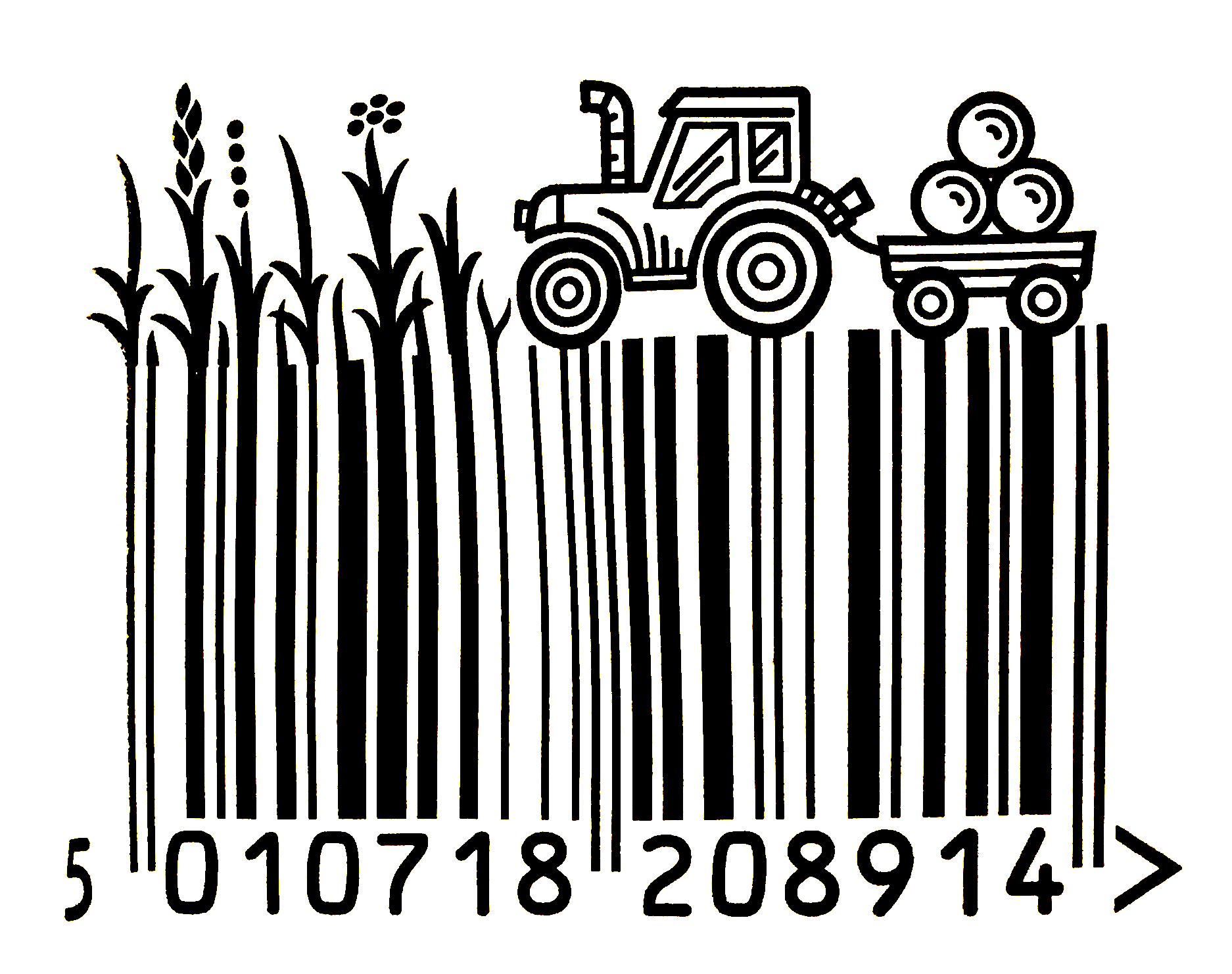
And my absolute favourite, McVitie’s Jaffa Cakes…
[ See also: Cake v. Biscuit, 1991 ]

With all these in mind, I designed a themed barcode for my novella Just a Game, which is partly set among sunflowers in France (and has a sunflower on the cover too):

A Quick Note about QR-Codes and Books
As long as you can be sure of a permanent landing page, there is nothing to stop you also including a QR-code in/on your book (or ebook) for directing readers to your website, a newsletter sign-up page, your social media, or wherever.
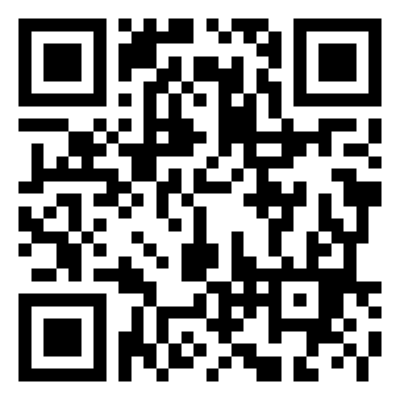
An example QR Code. This one links to tec-it.com, where you can make your own for free.
If possible, a QR code should be printed at a minimum size 20 × 20mm, and have at least 10% white space around it (so for a 20×20 code, the border needs to be at least 2mm).
Nerd Box – Make your own QR Code (for free)
Scan the code above, or visit barcode.tec-it.com (link checked Jan 25) and follow these instructions:
- in the scrollable box on the left (might be headed ‘Linear Codes’), find the option for ‘2D CODES’ – if you scanned the code above, the right option should already be selected for you),
- click on ‘QR CODE’,
- in the ‘data’ window in the middle of the screen, enter your URL,
- in the QR-code panel (on the right), click on the settings-cog at the top right, and set the ‘image resolution (DPI)’ to 300 (for print), or 76 (for an ebook),
- set the file-type to ‘PNG’ (white background) or ‘GIF’ (transparent background)
- click download, and you have an image file you can open, copy, and past onto your cover, or include in your ebook.
Any problems, let me know.
Sources
¹ &lrquo;The History of the Barcode”. Weightman, Gavin. Smithsonian Magazine. 2015.
https://www.smithsonianmag.com/innovation/history-bar-code-180956704/
Related Posts
ISBN Explainer
Designing Your Cover (coming soon)
Blog Index
Need more help?
If you need help with this topic, or any other formatting issue, come and find me on Bluesky @writeleighso or facebook @blotpublishing
